The HTML video element’s preload attribute accepts three values: metadata,
auto, and none. It tells the browser how much of a video it may fetch before
playback starts.
If the source is an animated GIF, converting it to a lighter video can make the loading decision much cheaper.
The important word is may. preload is a hint, not a command. The browser
can ignore it because of user settings, network conditions, or its own rules.
How does a video load?
A video does not always wait for a click before using the network. The browser
may fetch metadata, a few frames, or much more as soon as it sees the element.
The preload value guides that decision.
Also, <video preload> is the same as <video preload="auto">. An empty value
does not mean none.
What counts as metadata?
Metadata includes information such as the video’s duration, dimensions, and track list. The browser may fetch a few frames too.
There is no fixed metadata download size. It depends on the file format, how it
was encoded, browser behavior, and whether the server supports range requests.
For MP4 files, putting the moov atom at the start—often called “fast
start”—can help the browser find metadata without scanning the end of the file.
A poster is a separate image request. It is not part of the video metadata.
The test video
I used a chunky 9 MB .mov file to make the network activity easy to see. The
screenshots below are from one Chrome test in 2020. Treat the numbers as an
example, not a browser guarantee.
Preload metadata
<video preload="metadata" src="ocean-spray.mov"></video>The browser may fetch enough data to learn the duration, dimensions, and tracks, plus a small amount of media data. In this test, Chrome transferred 919 KB before play was pressed.
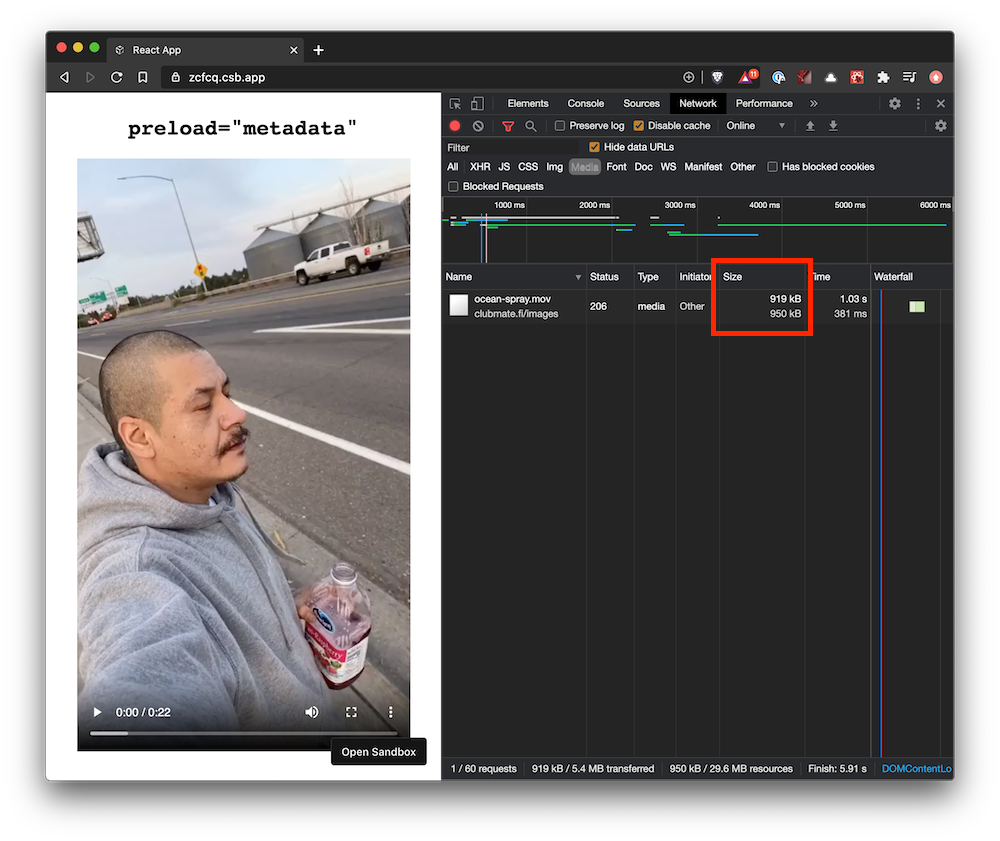
metadata is a good starting point for a normal video player. Controls can show
the duration, and the browser avoids eagerly buffering the whole file.
Preload auto
<video preload="auto" src="ocean-spray.mov"></video>auto allows the browser to download as much as it considers useful, including
the entire video. It does not guarantee a full download.
Chrome had transferred 5.4 MB when I took this screenshot. It could have continued to the full 9 MB.
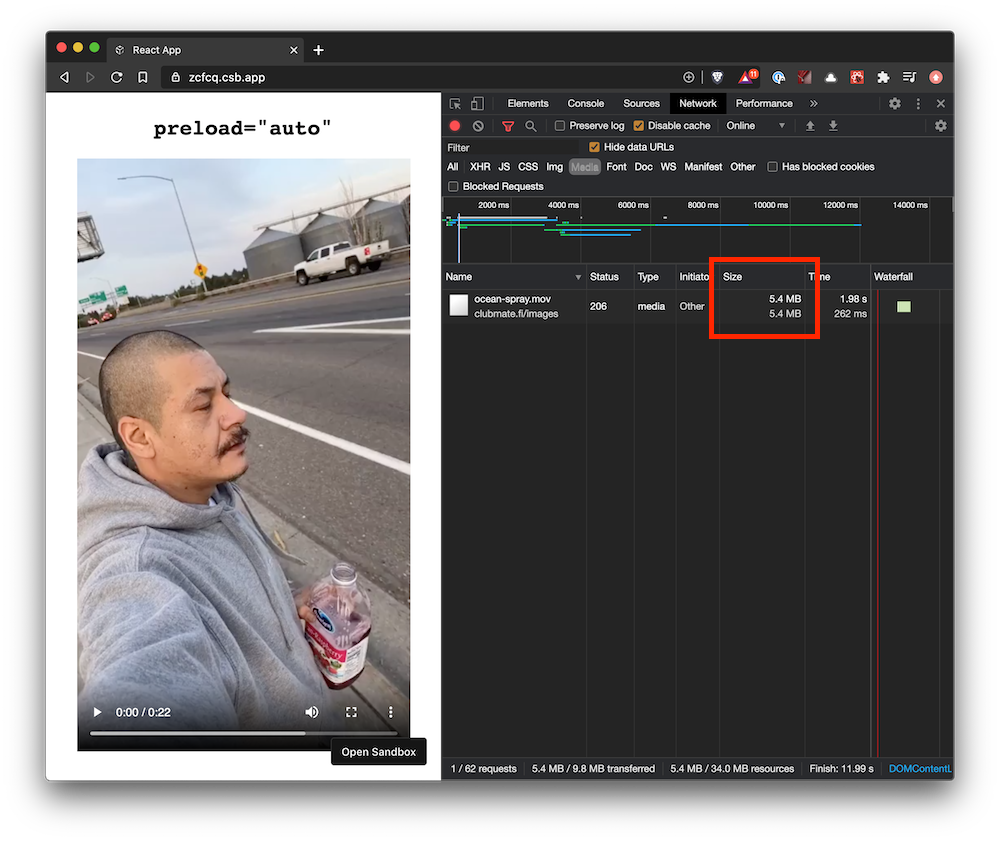
Use auto only when playback is very likely. Otherwise it can waste bandwidth
and compete with more important page resources.
Preload none
<video preload="none" src="ocean-spray.mov"></video>none asks the browser not to fetch the video before the user starts playback.
In this test, it made no video request before play.
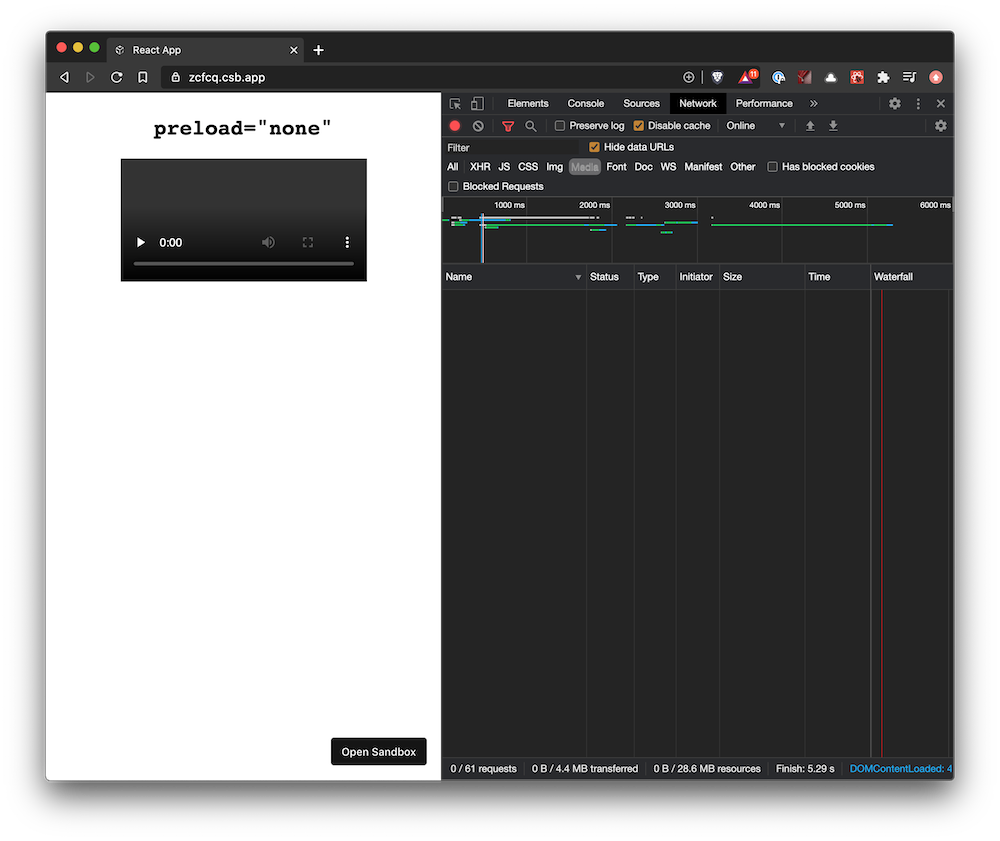
Without known dimensions, the player may resize after its metadata arrives and cause a layout shift. Reserve the space yourself and provide a poster:
<video
  controls
  width="1280"
  height="720"
  poster="ocean-spray.jpg"
  preload="none"
  src="ocean-spray.mp4"
></video>
The poster still has its own network cost. Use CSS aspect-ratio as an
alternative when fixed dimensions do not fit the design.
<video
  class="video"
  controls
  poster="ocean-spray.jpg"
  preload="none"
  src="ocean-spray.mp4"
></video>.video {
width: 100%;
aspect-ratio: 16 / 9;
}What about loading="lazy"?
The HTML Standard now defines loading="lazy" for media elements. When
supported, it defers an offscreen video’s preload work—and its poster—until the
video approaches the viewport. It takes precedence over preload.
What about autoplay?
autoplay can override preload: a video must buffer before it can play.
Autoplay policies may still block playback, especially when the video has audio.
Remember that autoplay is a boolean HTML attribute. Even autoplay="false"
enables it; omit the attribute to turn it off.
Which preload value should you use?
metadata: a sensible default for a typical video playernone: best for video lists, offscreen videos, or saving as much data as possibleauto: best when the user is very likely to play the video immediately
Whichever value you choose, set dimensions or aspect-ratio to prevent layout
shifts. Then test the real video in the browsers and network conditions your
audience uses.