Animated GIFs are easy to embed, but they are often much larger than an equivalent video. This guide converts a GIF to a muted, looping MP4 or WebM with FFmpeg or HandBrake. It also covers converting a video back to a good-quality GIF.
Why replace an animated GIF with video?
GIF is limited to 256 colors per frame and uses lossless image compression. Modern video codecs can reuse information between frames, so animation usually compresses much more efficiently as video. A video can also begin playing before the entire file has downloaded.
GIF still has some advantages: it works in an img element, loops by default,
and is easy to share as one file. A replacement video therefore needs to be
muted, autoplaying, looping, and playable inline.
Choosing a web video format
MP4 and WebM are containers; H.264, VP9, and AV1 are video codecs stored inside them. These are the useful combinations for a website:
| Output | Video codec | When to use it |
|---|---|---|
| MP4 | H.264 | The safest single-file option and the broadest compatibility |
| WebM | VP9 | Good support in current browsers and often a smaller file |
| WebM | AV1 | Better compression, but slower encoding and weaker support on older devices |
For a simple site, start with H.264 in MP4. For additional compression, provide VP9 or AV1 WebM first and keep the MP4 as a fallback. Ogg video is no longer a useful fallback for modern browsers.
Convert a GIF with HandBrake
HandBrake is a free graphical video transcoder. It uses FFmpeg libraries to read many source formats and provides sensible encoding defaults.
- Open the GIF with Open Source.
- On the Summary tab, select MP4 and enable Web Optimized.
- On the Video tab, select H.264 (x264), Same as Source, and Variable Framerate.
- Use constant quality. RF 20 is a reasonable starting point for a small animation; a lower RF produces higher quality and a larger file.
- Remove any audio tracks, choose an output filename, and start the encode.
Preview the result and adjust the quality if text or sharp edges look blurred.
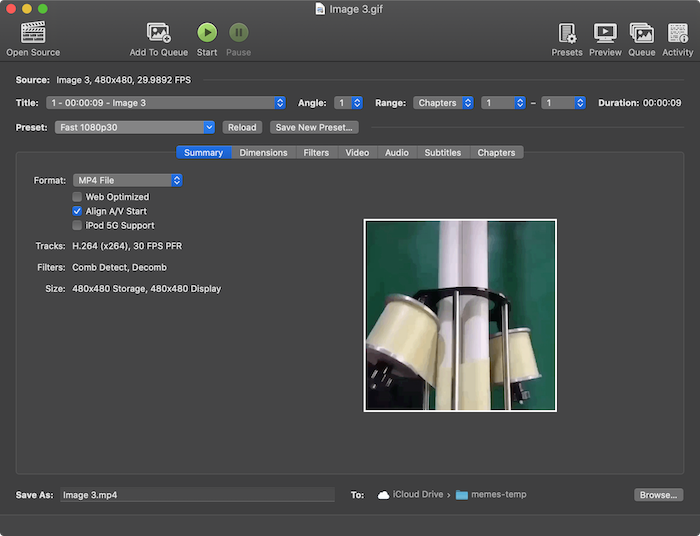
Convert a GIF to MP4 with FFmpeg
FFmpeg gives you exact control from the command line. On macOS with Homebrew, install it with:
brew install ffmpeg
ffmpeg -version
Convert an animated GIF to an H.264 MP4:
ffmpeg \
  -i input.gif \
  -an \
  -c:v libx264 \
  -preset slow \
  -crf 23 \
  -pix_fmt yuv420p \
  -vf "scale=trunc(iw/2)*2:trunc(ih/2)*2" \
  -movflags +faststart \
  output.mp4
The important options are:
-c:v libx264encodes H.264 video-crf 23controls quality; try 18–28, where a lower value means higher quality and a larger file-preset slowspends more time encoding to improve compression-pix_fmt yuv420pproduces a widely supported pixel formatscale=trunc(iw/2)*2:trunc(ih/2)*2makes odd dimensions even, as required by this pixel format-movflags +faststartmoves the MP4 index to the beginning for progressive download-anremoves audio, if the input happens to contain any
Use CRF to tune quality instead of guessing a fixed bitrate. The result depends on the dimensions, frame rate, and amount of movement, so compare the files in a browser before choosing a value.
Create a WebM version
VP9 in a WebM container is a useful alternative:
ffmpeg \
  -i input.gif \
  -an \
  -c:v libvpx-vp9 \
  -crf 32 \
  -b:v 0 \
  -pix_fmt yuv420p \
  -vf "scale=trunc(iw/2)*2:trunc(ih/2)*2" \
  output.webm
For VP9, -b:v 0 enables constant-quality mode and -crf controls the quality.
Try CRF values around 28–36. Lower values produce higher quality and larger
files.
These MP4 and WebM commands do not preserve GIF transparency. Composite a transparent GIF onto the intended page background before encoding it.
Add a shell function
Add this Bash or Zsh function to your shell configuration if you run the MP4 conversion often:
gif_to_mp4() {
  if (( $# < 1 || $# > 2 )); then
    echo "Usage: gif_to_mp4 input.gif [output.mp4]" >&2
    return 2
  fi

  local input=$1
  local output=${2:-"${input%.*}.mp4"}

  ffmpeg \
    -i "$input" \
    -an \
    -c:v libx264 \
    -preset slow \
    -crf 23 \
    -pix_fmt yuv420p \
    -vf "scale=trunc(iw/2)*2:trunc(ih/2)*2" \
    -movflags +faststart \
    "$output"
}
For Fish, use:
function gif_to_mp4 --description 'Convert a gif to a video'
  if test (count $argv) -lt 1; or test (count $argv) -gt 2
    echo "Usage: gif_to_mp4 input.gif [output.mp4]" >&2
    return 2
  end

  set -l input $argv[1]
  set -l output

  if test (count $argv) -eq 2
    set output $argv[2]
  else
    set output (string replace -r '(\.[^./]*)?$' '.mp4' -- $input)
  end

  ffmpeg \
    -i "$input" \
    -an \
    -c:v libx264 \
    -preset slow \
    -crf 23 \
    -pix_fmt yuv420p \
    -vf "scale=trunc(iw/2)*2:trunc(ih/2)*2" \
    -movflags +faststart \
    "$output"
end
Use the generated filename or provide one explicitly:
gif_to_mp4 animation.gif
gif_to_mp4 animation.gif smaller-animation.mp4
FFmpeg asks before overwriting an existing output file. Add -y only if you
want it to overwrite without prompting.
Convert a video to GIF
A direct conversion wastes colors and often produces a large file. Generate a palette from the processed frames, then apply it to the GIF:
ffmpeg \
  -i input.mp4 \
  -filter_complex \
  "fps=15,scale='min(800,iw)':-1:flags=lanczos,split[s0][s1];[s0]palettegen[p];[s1][p]paletteuse=dither=sierra2_4a" \
  -loop 0 \
  output.gif
This limits the animation to 15 frames per second and at most 800 pixels wide.
Both changes reduce file size. Adjust them for the content. palettegen builds
an optimized 256-color palette and paletteuse applies it with dithering. See
the FFmpeg documentation for the
palettegen and
paletteuse options.
-loop 0 makes the GIF loop forever.
Display a video like a GIF
Use WebM first and MP4 as the fallback:
<video autoplay loop muted playsinline preload="metadata">
  <source src="/videos/animation.webm" type="video/webm" />
  <source src="/videos/animation.mp4" type="video/mp4" />
  <p>Your browser does not support HTML video.</p>
</video>
Browsers generally allow autoplay only when a video has no audio or is muted.
playsinline prevents forced fullscreen playback on mobile browsers. Source
order matters: the browser uses the first format it can play.
Add explicit width and height attributes when you know the dimensions to
prevent layout shift. A poster image can provide a stable first frame while
the video loads. If the animation is not essential, also respect the user’s
reduced-motion preference and provide a way to pause it.