This posts looks into using computer from the command line: how to navigate around your file system and how to do basic tasks such as; creating/deleting folders and files, installing packages with apt-get, general terminology, customizing the terminal, and some more.
It’s one of the things that seem hard, but actually are not (I mean the basics aren’t difficult), learn a few commands and tricks, and you’ll find it much better way of using a computer.
Terminology
Command Line Interface CLI — an umbrella term:
... is a means of interacting with a computer program where the user (or client) issues commands to the program in the form of successive lines of text (command lines).
Shell — the program you’re using:
The most generic sense of the term shell means any program that users employ to type commands.
Bash — a type of shell:
Bash is a Unix shell [...] a free software replacement for the Bourne shell [...] it has been distributed widely as the shell for the GNU operating system and as a default shell on Linux and Mac OS X.
Terminal — OS X shell:
Terminal (Terminal.app) is the terminal emulator included in the OS X operating system by Apple Inc..
Why would I want to learn that?
- There is a whole cosmos of GUI-less handy applications, you have more stuff at your disposal. For me one of the triggers was to be able to use Grunt
- Linux and OS X use a lot of the same commands, learn one and you know the other
- Servers are mostly Linux, learn to configure it from command line and you can run your own server. Configuring a server is the most ideal way to get comfortable with shell *
If you want a more focused introduction to writing reusable command-line programs, continue with the beginner-friendly Bash scripting guide.
OS X Terminal
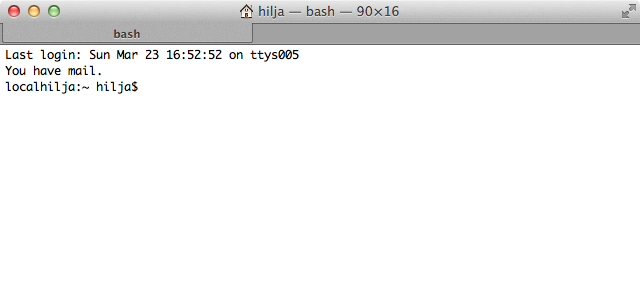
Terminal is in the Utilities folder inside Applications. Here's the default look.
Make it prettier and better
I recommend iTerm, it has tabs and bunch of other cool stuff. Some people also prefer TotalTerminal.
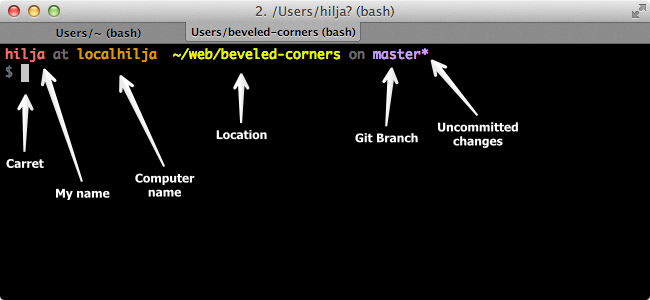
The default look is a bit morose, it can be made more interesting easily. Grab
the .bash_prompt file from here and just
drop it into your home directory, boot iTerm. You can customise the iTerm colors
in its Settings → Profiles → Colors (⌘ + ,), change the background to your
preference. I like to have my text editor white and terminal black, so I can
distinguish them easily.
Navigating the filesystem
You go to a directory with the cd command.
$ cd foldernameReally important thing is to use tab completion.
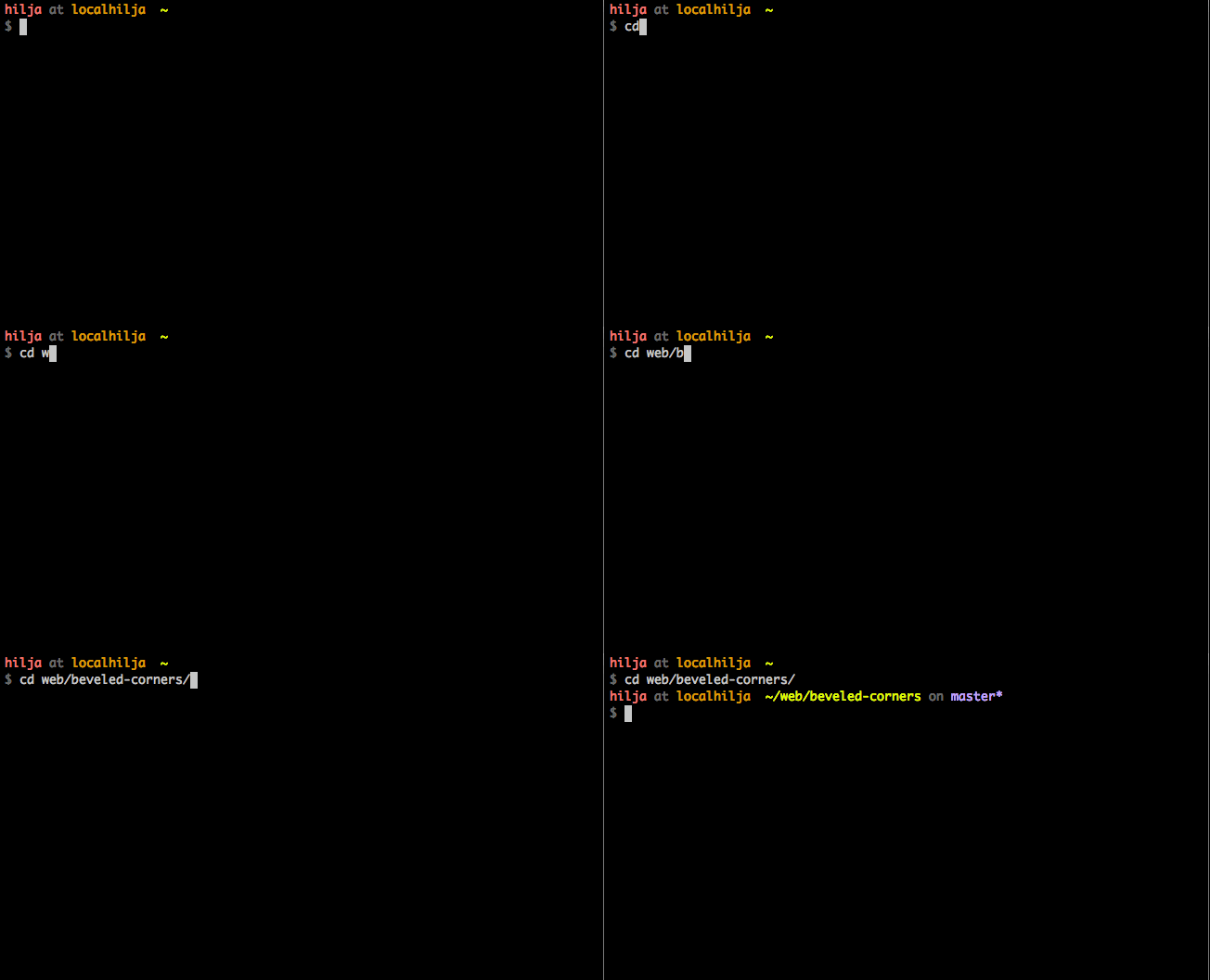
The above gif explained:
$ cd w<tab>

# Completes into
$ cd web/

# Next dir
$ cd web/be<tab>

# Completes into
$ cd web/beveled-corners
Start by typing a few letters of the folder name and then press Tab, and it’ll fill the whole name in for you. This is priceless!
If there are multiple folders with almost the same name (such as config.php
and config-sample.php), it won't work right away. Press Tab twice to see all
the files with the same beginning.
Set of commonly used command
This section is just a dump of commands basically.
With these you can get pretty far already. The commands work both in Mac and Linux (unless otherwise mentioned).
Nomenclatures:
$character means that it’s a line to be written in command prompt (don’t actually type the dollar character).#is a comment.- If the line starts with nothing, it means it’s an output of a command.
Navigating
Go to a folder:
$ cd foldernameList files:
$ lsList also hidden files:
$ ls -aList as a "list" and show the file sizes in human readable form:
$ ls -lahNavigate to a different hard drive, usually only needed on a local computer:
$ cd /Volumes/"Some Volume Name Here"The possible spaces in the directory names can also be escaped with a backslashes:
$ cd /Volumes/Some\ Volume\ Name\ HereWhere are you (pwd: Print Working Directory):
$ pwd
/path/to/your/current/location
Making
Make a folder (mkdir: MaKe
Directory):
$ mkdir foldernameMake a blank new file:
$ touch some-file.txtMake a file with content:
$ "your content" > foo.txtOr based onto another file:
$ cat other-file.txt > foo.txtDownloading/Uploading
Download a file from internet (wget: World Wide Web Get):
$ wget http://www.example.com/path/to/file.txtUpload file to a server securely (scp: Secure Copy):
$ scp ./my-file.zip bob@127.0.0.0:/var/www/my-siteDownload file from a server securely (to your current working directory):
$ scp bob@127.0.0.0:/var/www/my-site/my-file.zip ./Get headers of a website:
$ curl -I "https://clubmate.fi"Quickly check if an URL redirects:
$ curl -I -s "http://clubmate.fi" | grep Location:
Location: https://clubmate.fi/
The -s stands for "silent".
Opening files
Open a file in OS X:
$ open filename.psd
# Opens to Photoshop
Open into a certain app in OS X:
$ open -a "Adobe Photoshop 7.0" foo.jpgMoving, renaming, and copying
Move a file:
$ mv logo.png images/logo.pngRename a file, mv is actually a move command, we’re kinda moving the file to
the same directory:
$ mv index.html index-old.htmlCopy a file:
$ cp index.html index-copy.htmlMove directory’s content one level up. Basically this:
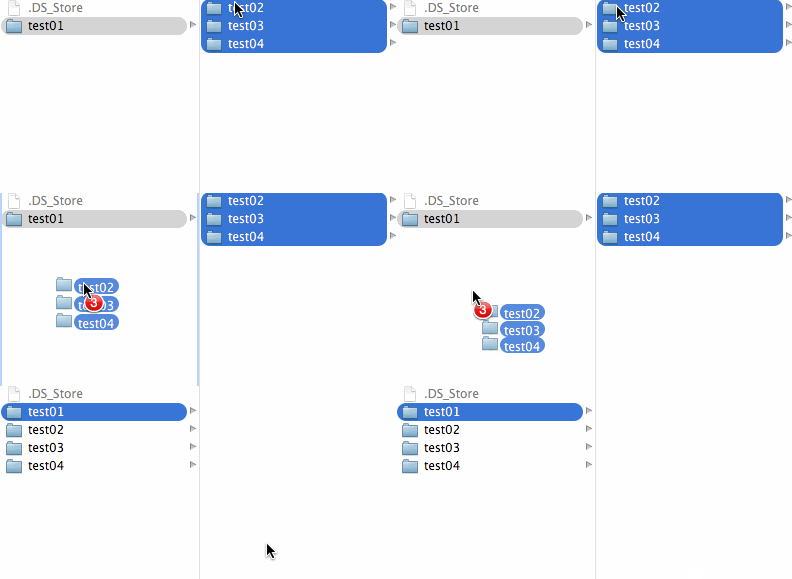
$ mv my-folder/* .Even better, you can chain the removal of the now empty directory with the double ampersand:
sudo mv my-folder/* . && rmdir my-folder/Removing files
$ rm my-file.txt
rm: remove write-protected regular empty file ‘my-file.txt’?
# Answer with y or n
Remove a directory:
$ rmdir my-directory/Remove directory recursively:
$ rm -r my-directory/Use the force, the "rimraf". Careful with this one, it’s easy to remove too much, it won’t prompt you and the files can’t be recovered:
$ rm -rf my-directory/Viewing and editing
Print out the contents of a file (concatenate):
$ cat foo.txtEdit a file in your chosen text editor:
$ vim foo.txt
$ nano foo.txt
$ vsc foo.txt
Installing packages
Every system comes with its own package manager.
Using apt-get, the Debian package manager
Install packages:
$ sudo apt-get install htopSearch for packages:
$ apt-get search htopReinstall package:
$ sudo apt-get install --reinstall package-nameUpdate packages, first update the package list, then the actual packages
$ apt-get update && apt-get upgradeSee this great apt-get
cheat sheet.
Using Homebrew: the Mac OS package manager
Update the Homebrew package list:
$ brew updateInstall a package:
$ brew install htopSearch for packages:
$ brew search htopUpdate a packages:
$ brew upgrade htopUpdate all packages:
$ brew upgradeShow all outdated packages:
$ brew outdatedQuitting processes
Kill a process,
(read more about killing).
First note the PID, use htop for that, then run:
$ kill -9 <PID-HERE>Clearing
Clear the terminal window:
$ clearOr Ctrl+k will destroy the current buffer completely, meaning you can’t scroll up anymore.
Permissions and access
Check folder permissions:
$ ls -l ./my-dirChange owner of a file:
$ chown my-file.txtChange owner of a directory (recursively):
$ chown -R newowner my-dir/Change owner and group of a directory and all its files:
$ chown -R newowner:newgroup my-dir/Change group only:
$ chown -R :newgroup my-dir/Add user to a group:
$ sudo usermod -a -G www-data usernameAdd your user to a group, to www-data in this case:
$ sudo usermod -a -G www-data usernameChange permissions recursively, but to directories only. This change all
directories in the current working directory to 755:
$ sudo find . -type d -print0 | xargs -0 chmod 0755This one changes all files to 644 recursively, but doesn’t touch directories:
$ sudo find . -type f -print0 | xargs -0 chmod 0644User switching
Switch users. This comes in handy in a server environment (su: Switch User):
$ su usernameOr switch to root with sudo:
$ sudo -iSwitch back to your original user:
$ exitUser management
Make a new user:
$ sudo useradd bobChange currently logged in users password:
$ sudo passwdChange other user password:
$ sudo passwd bobRestarting, booting, and exiting
Reboot a machine, rarely needed but not never:
$ sudo reboot now
# Or only a reboot worked just as well
reboot
Turn the machine off:
$ shutdownOr halt:
$ shutdown -HExit the machine or a user you’re in:
$ exitFinding stuff
Look from the current working directory . a file named foo-bar.svg:
$ find . -name foo-bar.svgLocate your php.ini file:
$ php --iniMisc commands
Get the system time in Ubuntu (clock):
$ hwclock --showGet status of a service in Ubuntu, mysql in this case:
$ service mysql statusGet all installed packages in Ubuntu:
$ dpkg --get-selections | grep -v deinstallReload NGINX:
$ sudo nginx -s reloadRestart any service after changing setting, NGINX in this case:
$ sudo service nginx restart