# Install and run Vagrant
This post looks at how to install vagrant, and how to initialize a project and
install a box. It also lists all needed commands and tricks to get started on
local developing goodness.
## Terminology
### Box
These are the virtual linux machines Vagrant runs on. It might be that only one
box is needed, multiple dev environments can be run on the same Box.
> Boxes are the package format for Vagrant environments. A box can be used by
> anyone on any platform that Vagrant supports to bring up an identical working
> environment. The vagrant box utility provides all the functionality for
> managing boxes. You can read the
> [documentation](http://docs.vagrantup.com/v2/cli/box.html) on the vagrant box
> command for more information.
### Providers
[VirtualBox](https://www.virtualbox.org/wiki/Downloads) is a provider,
[VMware](http://www.vmware.com/) is a provider. It's the application that is
doing the actual work here.
### Provisioning
This means installing all the needed components to the server programmatically,
e.g. MySQL, NGINX, Node etc. These are specified in the `Vagrantfile`, in the
project root and is usually done via provisioning tool like
[Puppet](https://puphpet.com/) or [Chef](https://www.chef.io/).
> Provisioners in Vagrant allow you to automatically install software, alter
> configurations, and more on the machine as part of the vagrant up process.
### Vagrantfile
A file called `Vagrantfile` lives in the project root. This is where all the
Vagrant related configuration is (think Gemfile or Capfile).
## Install needed components
There are two required components:
1. VirtualBox — Get it [here](https://www.virtualbox.org/wiki/Downloads) and
run the installer
2. Vagrant itself — Get it [here](http://www.vagrantup.com/downloads) and run
the installer
## Spin it up
Project directory is needed (of course):
```
$ mkdir vagrant_test && cd vagrant_test
```
Initialize Vagrant in a chosen directory:
```
$ vagrant init hashicorp/precise64
A `Vagrantfile` has been placed in this directory. You are now
ready to `vagrant up` your first virtual environment! Please read
the comments in the Vagrantfile as well as documentation on
`vagrantup.com` for more information on using Vagrant.
```
Then, do as you were told:
```
$ vagrant up
```
We didn't have a box installed yet, Vagrant is now doing just that: installs 64
bit Ubuntu on the VirtualBox. It's about 374M in size, when installed it takes
roughly 1GB. On a broadband the install take roughly ~5 minutes.
Here's what the output of `vagrant up` should look like at this point:
```
Bringing machine 'default' up with 'virtualbox' provider...
==> default: Box 'hashicorp/precise64' could not be found. Attempting to find and install...
default: Box Provider: virtualbox
default: Box Version: >= 0
==> default: Loading metadata for box 'hashicorp/precise64'
default: URL: https://vagrantcloud.com/hashicorp/precise64
==> default: Adding box 'hashicorp/precise64' (v1.1.0) for provider: virtualbox
default: Downloading: https://vagrantcloud.com/hashicorp/precise64/version/2/provider/virtualbox.box
default: Progress: 49% (Rate: 801k/s, Estimated time remaining: 0:07:08)
default: Progress: 49% (Rate: 739k/s, Estimated time remaining: 0:07:06)
==> default: Successfully added box 'hashicorp/precise64' (v1.1.0) for 'virtualbox'!
==> default: Importing base box 'hashicorp/precise64'...
==> default: Matching MAC address for NAT networking...
==> default: Checking if box 'hashicorp/precise64' is up to date...
==> default: Setting the name of the VM: clubmatefi_default_1398865802619_53576
==> default: Fixed port collision for 22 => 2222\. Now on port 2200.
==> default: Clearing any previously set network interfaces...
==> default: Preparing network interfaces based on configuration...
default: Adapter 1: nat
==> default: Forwarding ports...
default: 22 => 2200 (adapter 1)
==> default: Booting VM...
==> default: Waiting for machine to boot. This may take a few minutes...
default: SSH address: 127.0.0.1:2200
default: SSH username: vagrant
default: SSH auth method: private key
default: Warning: Connection timeout. Retrying...
==> default: Machine booted and ready!
==> default: Checking for guest additions in VM...
default: The guest additions on this VM do not match the installed version of
default: VirtualBox! In most cases this is fine, but in rare cases it can
default: prevent things such as shared folders from working properly. If you see
default: shared folder errors, please make sure the guest additions within the
default: virtual machine match the version of VirtualBox you have installed on
default: your host and reload your VM.
default:
default: Guest Additions Version: 4.2.0
default: VirtualBox Version: 4.3
==> default: Mounting shared folders...
default: /vagrant => /Users/bob/web/vagrant_test
```
Now it's running (pump fist up and down). The newly created box can be seen in
the VirtualBox.
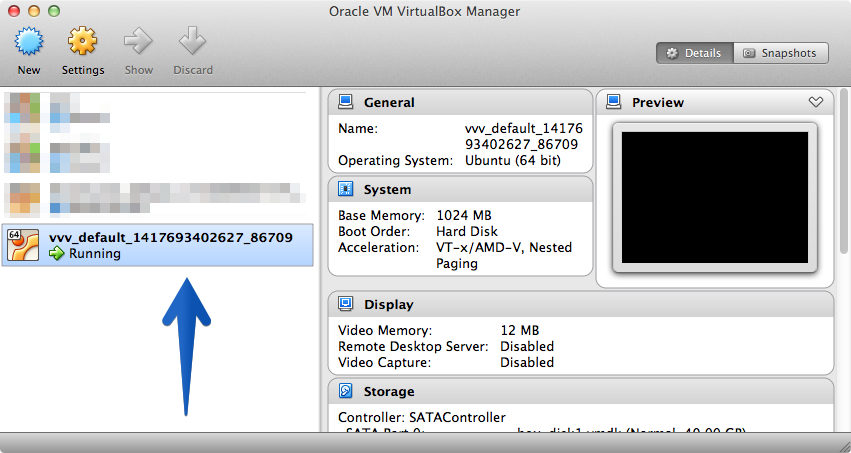
Ssh into the box and look around:
```
$ vagrant ssh
```
## It's running, now what?
### Configure Vagrant via Vagrantfile
There's now `Vagrantfile` in the working directory, it's in Ruby, set syntax
highlighting accordingly. Start by deleting all the commented lines, and you're
left with the gist:
```
# -*- mode: ruby -*-
# vi: set ft=ruby :
# Vagrantfile API/syntax version. Don't touch unless you know what you're doing!
VAGRANTFILE_API_VERSION = "2"
Vagrant.configure(VAGRANTFILE_API_VERSION) do |config|
config.vm.box = "hashicorp/precise64"
end
```
IP can be set like this:
```
config.vm.network :private_network, ip: "192.168.33.101"
```
And the port:
```
config.vm.network :forwarded_port, guest: 80, host: 9090
```
And the synced folder:
```
config.vm.synced_folder "./", "/vagrant"
```
Plus tons of other stuff, but for now we'll stick to the minimum settings.
All in all the Vagrantfile should look something like this:
```
# -*- mode: ruby -*-
# vi: set ft=ruby :
# Vagrantfile API/syntax version. Don't touch unless you know what you're doing!
VAGRANTFILE_API_VERSION = "2"
Vagrant.configure(VAGRANTFILE_API_VERSION) do |config|
config.vm.box = "hashicorp/precise64"
config.vm.network :private_network, ip: "192.168.33.101"
config.vm.network :forwarded_port, guest: 80, host: 9090
config.vm.synced_folder "./", "/vagrant"
end
```
### Reload Vagrant
Issue the following command:
```
$ vagrant reload
```
Wait for it boot and `vagrant ssh` into it.
Now, this is where we'd usually set up [Puppet](http://puppetlabs.com/) to do
all the heavy lifting, but lets just play around with the VM a bit first to
really understand what's going on (follow up post on Puppet is already brewing).
Install NGINX via `apt-get` just to illustrate how things work here:
```
$ sudo apt-get update
$ sudo apt-get install nginx
```
Start it:
```
$ service nginx start
```
Go to `192.168.33.101` or `localhost:9090` and you shoud see the NGInx default
page. We're getting somewhere here.
Go to the server root and have a look:
```
$ cd /vagrant # This was defined in Vagrantfile
$ ls # It's our project dir, voilà
```
So, this is indeed the directory on the host machine (that's your computer).
Type `exit` in the prompt and you're out from the Vagrant VM. Go ahead and make
a file called `index.html` in the project root. This can be done from the prompt
(as well as from text editor or Finder):
```
$ sudo nano index.html
```
Nano will pop up, paste in a primitive `html` file:
```
Spoon dilemma
Hello world!
My spoon is too big.
```
On an editor with Emmet enabled, just type `html:5` and hit tab, it'll barf that
up for you.
Now we need to make NGINX to point to the `vagrant` directory, `vagrant ssh`
into the VM and issue the following:
```
$ sudo nano /etc/nginx/sites-available/default
```
Nano will pop up. Look up a line that says something like:
```
root /usr/share/nginx/www
```
That means NGINX is serving the site from there. Let's point NGINX to the
`vagrant` dir. Change the line to:
```
root /vagrant
```
Restart NGINX:
```
$ sudo service nginx restart
```
Go to `192.168.33.101`, and there it is: **Hello world**. See, Vagrant and the
host are going a bit like this:

## Give it a nicer domain
The local site doesn't have to be at `192.168.33.101` or `localhost:9090`, it
can be a real domain, it can be whatver is specified in the `hosts` file. In OS
X Mavericks the `hosts` file is at `/private/etc/hosts` (if the hidden files
aren't enabled in Finder, the `private` dir won't show up).
Just add the IP and domain pair in the end of the file:
```
192.168.33.101 my-test-site.dev
```
### Point NGINX to the domain
Edit the `default` file again:
```
$ sudo nano /etc/ngingx/sites-available/default
```
Look up `server_name` and change it to:
```
server_name my-test-site.dev;
```
Restart as always:
```
$ sudo service nginx restart
```
Now the `index.php` can be viewed at my-test-site.dev.
## Take it down
There comes a time when the VM is not desired to be running, the current state
can be saved and the machine turned of with the `suspend` command:
```
$ vagrant suspend
```
Halt stops the machine gracefully. It's like pressing the power button on a
computer:
```
$ vagrant halt
```
If the machines is wished to be destroyed, the aptly names `destroy` command is
to be used:
```
$ vagrant destroy
```
## Readily configured Vagrant environments
If doing WordPress development, then the
[VVV](https://github.com/Varying-Vagrant-Vagrants/VVV) (Varying Vagrant
Vagrants) is the way to go. [PuPHPet](https://puphpet.com/) is also a really
great tool for spinning up and provisioning complex Vagrant environments.
## Conclusion
It might be tedious to install everything by hand every time, especially on more
complex environments. In that case, [Puppet](http://puppetlabs.com/) or
[Chef](https://www.chef.io/) are the way to go, but that's a subject for another
post.
## Troubleshooting
### Vagrant loads sites very slow
**Solutions #1:**
See how the host machines `hosts` file looks like. Put all the localhost calls
on a same line.
**Solutions #2:**
Vagrant has 360 MB memory by default, bump it up by putting this in the
`Vagrantfile` and running `$ vagrant restart`:
```
config.vm.provider :virtualbox do |vb|
vb.customize ["modifyvm", :id, "--memory", "1024"]
end
```
**Solutions #3:**
Define `skip-name-resolve` in the VMs `my.cnf`. The file can be located in
following directories, depending on the OS.
- `/etc/my.cnf`
- `/etc/mysql/my.cnf`
- `$MYSQL_HOME/my.cnf`
- `[datadir]/my.cnf`
- `~/.my.cnf`
On a Ubuntu precise64 it was in `/etc/mysql/my.cnf`, pop the file open with
nano:
```
$ sudo nano /etc/mysql/my.cnf
```
And edit to look something like this:
```
[mysqld]
skip-name-resolve
```
[Source](http://www.vionblog.com/skip-name-resolve-to-speed-up-mysql-and-avoid-problems/).
These might help, or not. In my experience the slowness is usually due to MySQL.
I had a machine that I ran WordPress dev sites on, and it just one day turned
almost completely unresponsive and I wasn't able to fix it. I just switched to
[VVV](https://github.com/Varying-Vagrant-Vagrants/VVV) and all works fine.
[VVV](https://github.com/Varying-Vagrant-Vagrants/VVV) is really the best
solution for running WP sites, IMHO.